
When you plan dinners, WeeknightBite adds everything they need to one shopping list, sorted by aisle, and everyone in your household sees the same list.
You can add anything else you need too, food or not: see Add your own items to the shopping list.
Pantry Check: staples you probably have
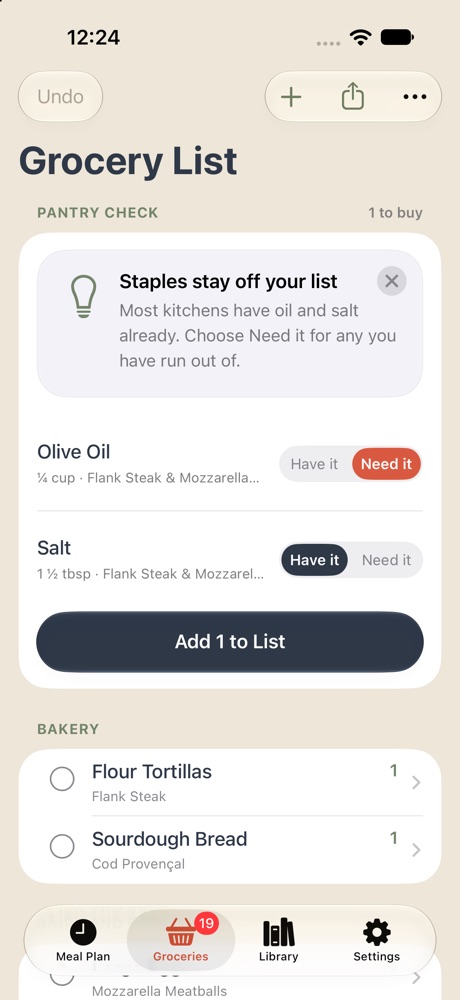
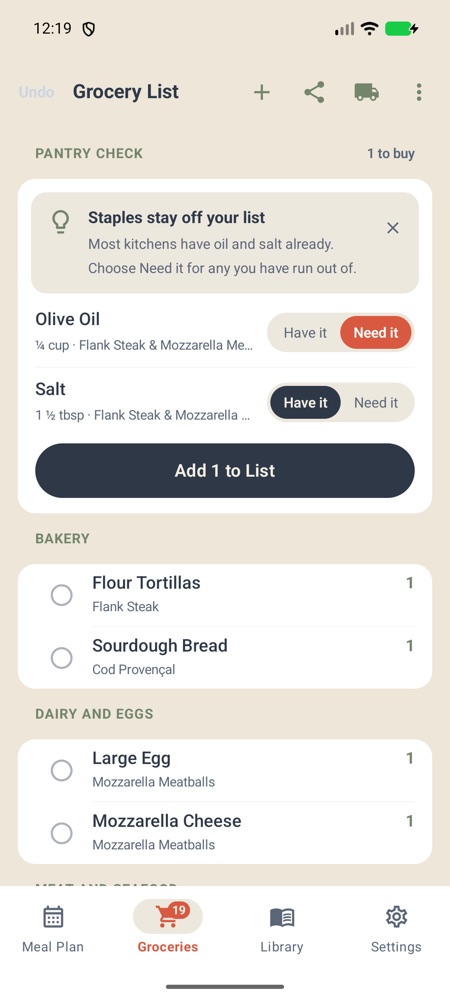
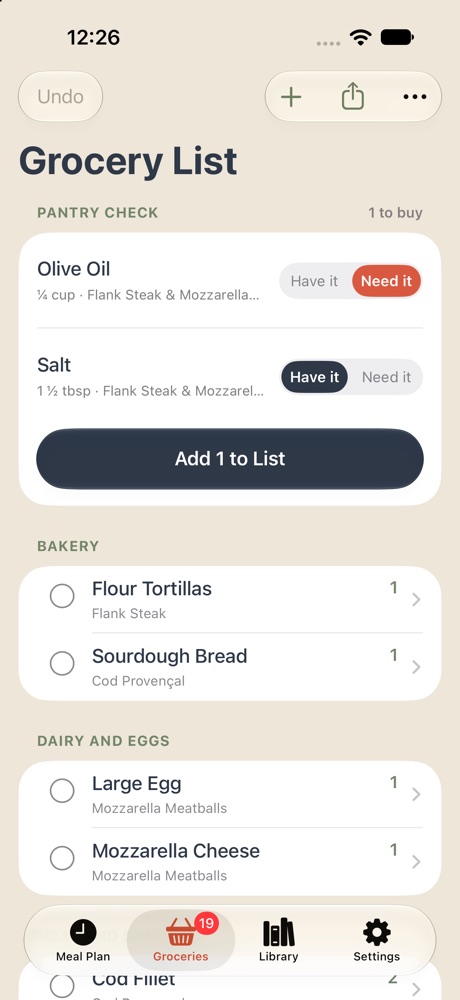
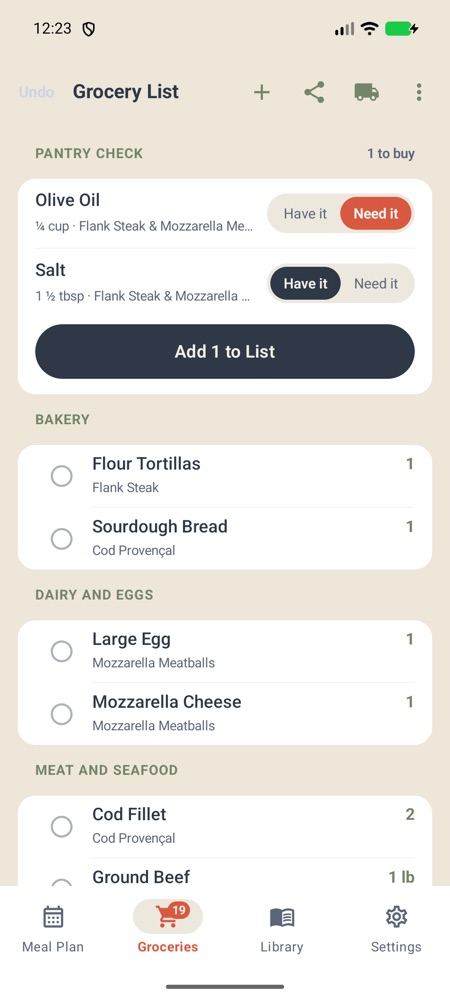
Recipes use staples like oil, salt and pepper that most kitchens already have. So you don’t buy them every week, the list puts them in a Pantry Check section at the top, each one set to Have it.
- Running low on one? Choose Need it on its row. The button below becomes Add 1 to List (with your count); tap it, and those staples go on your list to buy.
- Have everything? Tap I Have Everything and the check closes.
- Changed your mind? A Pantry checked row stays at the top of your list. Tap Redo Check to open the check again, with your answers as you left them.
On iPhone
On iPad the staples are chips in one card: tap a chip to mark it as needed. With nothing marked, the button reads Everything’s Stocked.
On iPhone
On Android
On iPhone
On Android
Choose what counts as a staple
Milk might be a staple in your home and something you buy every week in another. You can decide, item by item, what goes in the Pantry Check and what goes straight onto your list:
- Tap Groceries, then the item, in the Pantry Check or in its aisle. Its page opens. On iPad, touch and hold a staple, then tap Open Ingredient Page.Its page slides up.
- Turn Pantry staple on or off.
Turned off, the item leaves the Pantry Check and goes on your list in its aisle, to buy. Turned on, it joins the Pantry Check, set to Have it as something you usually have. This is for everyone in your household, on this list and every future one. Turn it back to how it was and WeeknightBite goes back to its own choice for that item.
On iPhone
A shortcut on iPhone for a staple you never keep at home: in the Pantry Check, touch and hold its name and tap Not a Staple for Us.
On Android
A shortcut for a staple you never keep at home: in the Pantry Check, touch and hold its name and tap Not a Staple for Us.
On iPhone
On Android
Turn Pantry Check off
Only want a few things checked? Leave Pantry Check on and turn off Pantry staple for the rest, as above.
To have staples go straight onto the list like everything else:
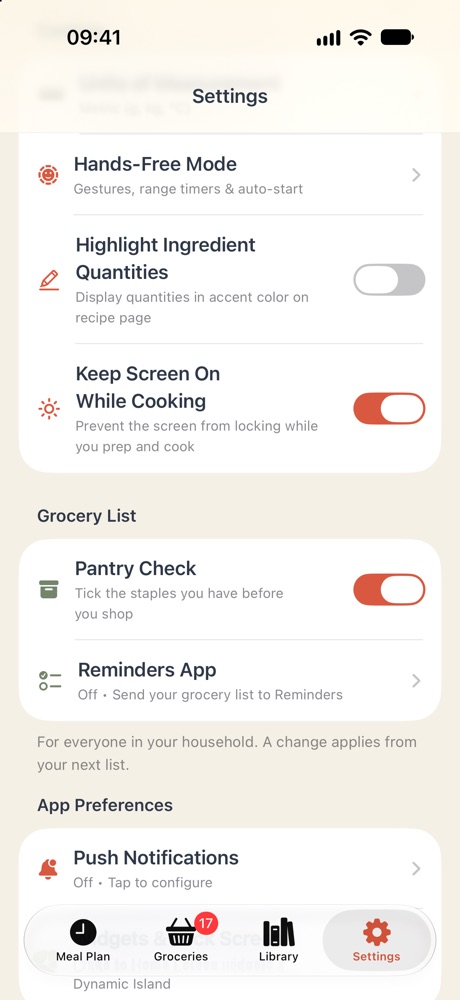
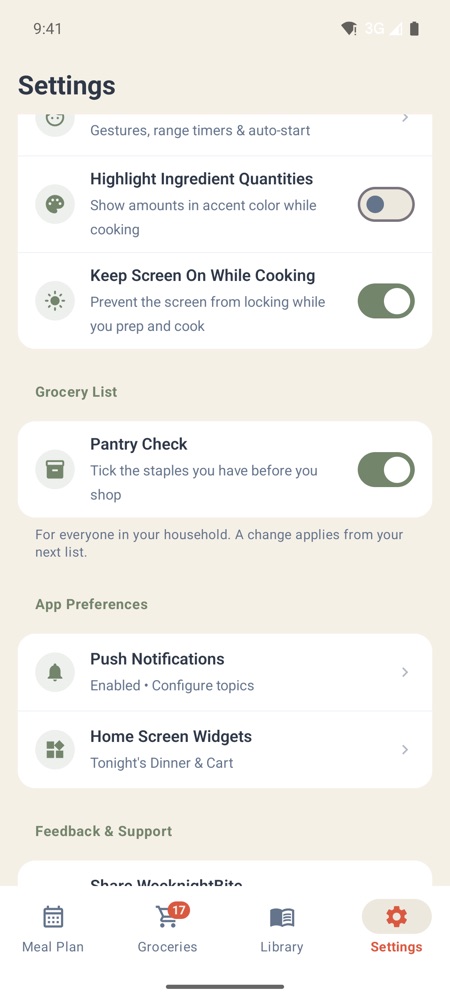
- Tap Settings.
- Under Grocery List, turn off Pantry Check.
This changes the list for everyone in your household, from your next list on.
On iPhone
On Android
See the items you’ve ticked
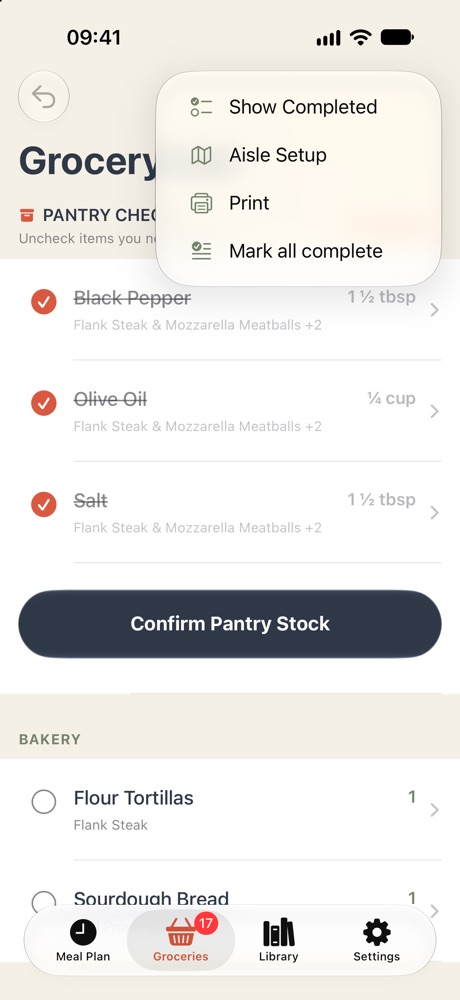
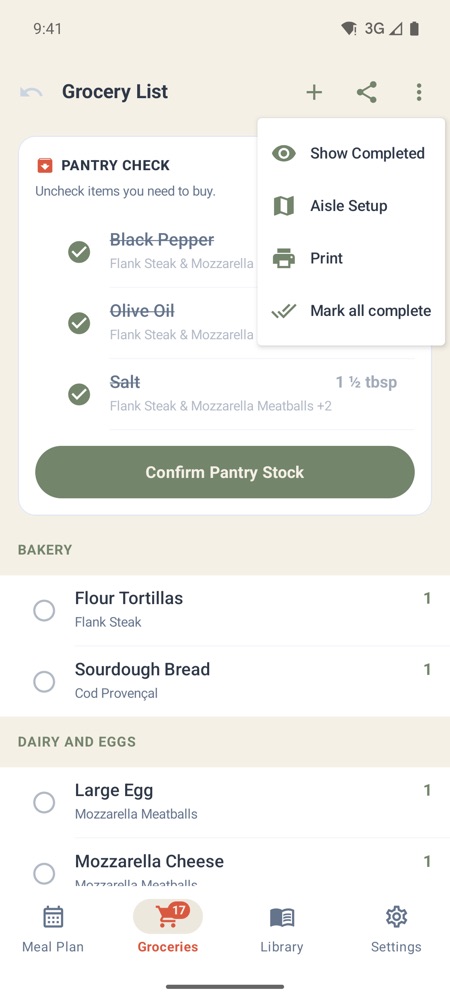
An item you tick off while shopping is crossed out, then leaves the list after a moment. To see ticked items again, tap ⋯ at the top right and choose Show Completed. Choose Hide Completed to hide them again.
On iPhone
On Android
An item in the wrong aisle?
Tap it, then its aisle, and pick another: see Move a grocery item to another aisle.
Change an amount
Have half the onions already, or need extra chicken for lunches? Change the amount on the list instead of adding the item again.
An item from your recipes:
- Tap Groceries, then the item. Its page opens.Its page slides up.
- Under Amount to buy, tap − or +, or tap the number to type one.
The page shows what your recipes need next to what you set, and the list shows your amount, for everyone in your household. Tap Use the recipes’ amount to go back. This needs WeeknightBite 2.5.0 or later on iPhone and iPad.This needs WeeknightBite 1.3.16 or later on Android.
On iPhone
On Android
An item you added yourself: tap it, change the Quantity with − and +, and tap Save. Adding the same item again in the same unit adds to its amount rather than making a second row.
Have all of something at home already? Just tick it off.
Write to us at hello@weeknightbiteapp.com. We read and answer every email. Tell us which phone you use and what you tapped, and a screenshot helps.
Tell us what you were trying to do and what happened. We read every message.