
When an import leaves some lines as written, or an ingredient without an amount, you can finish it yourself, for free. Each line you fix starts to scale and sorts into its aisle.
Open the lines to fix
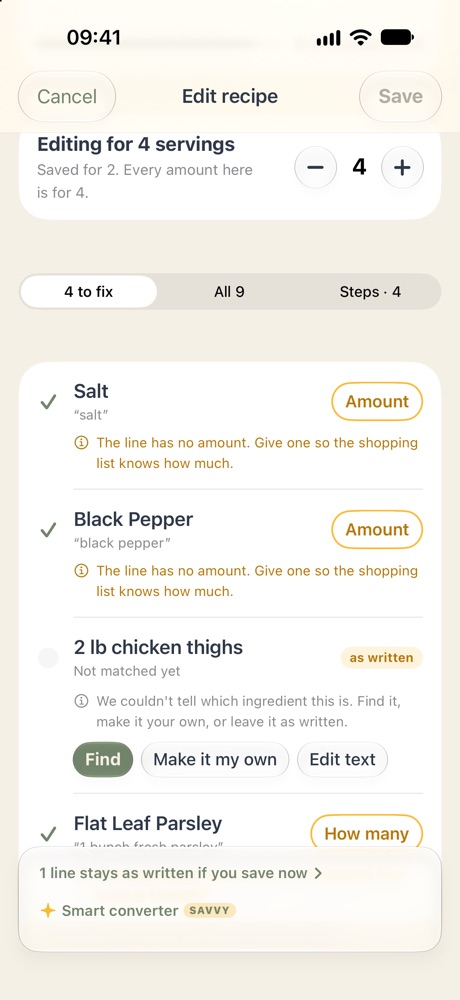
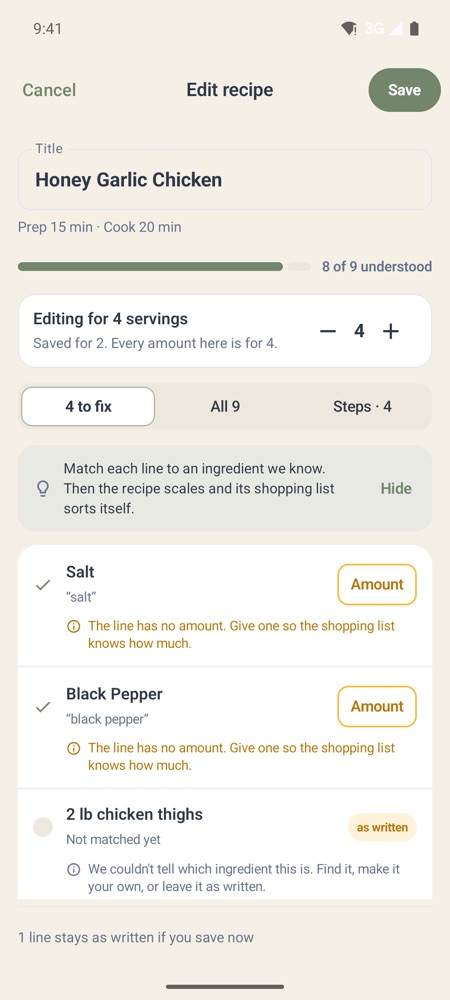
- Tap Fix 2 lines (with your number) on the sheet after the import, or Fix them on the recipe’s lines need a look card. You can also open the recipe, tap •••⋮ and choose Edit Recipe.
- The editor opens on to fix: just the lines left. All shows every line, and Steps the recipe’s steps.
On iPhone
On Android
Fix a line
- Find searches the shopping list’s ingredients for the right one.
- Make it my own keeps it as an ingredient of your own, with the name, unit and aisle you give it.
- Edit text corrects the line itself, a typo for example. WeeknightBite reads it again after.
- When WeeknightBite has a suggestion, tap Use this, or Another to pick a different ingredient.
- The same ingredient on two lines, such as “6 cloves garlic” and “1 clove garlic, grated”, comes as one row: Use this adds them up, Separate keeps a row for each. A line that belongs to an ingredient you already have offers Add to it, such as Add to Garlic.
- An ingredient without an amount asks for one: tap Amount. Type it as the recipe writes it. Servings at the top says how many the recipe makes; changing it changes no amount.
Save
You don’t have to fix every line to save: tap Save, and the lines you haven’t fixed stay as written. Once every line is understood and has an amount, saving makes it a Smart Recipe.
The steps keep their text until then. Once every line is understood, each step can say how much of an ingredient it uses (Step amounts come once every line is understood.).
Write to us at hello@weeknightbiteapp.com. We read and answer every email. Tell us which phone you use and what you tapped, and a screenshot helps.
Tell us what you were trying to do and what happened. We read every message.