
WeeknightBite cooks every meal for your family. It works out how many servings that is from the people in My Family, and scales each recipe and your shopping list to match. You can change the servings for one meal, and cook a few extra to keep as leftovers.
How your servings are worked out
Open Settings → My Family. Each adult counts as one serving, by the portion you give them: Smaller Portion counts ¾, Regular Portion one and Larger Portion 1¼. Each child counts half as much. The total is rounded to whole servings, so two adults and one child make 3 servings.
Tap a member to change their portion. When your family changes, every meal that follows it changes too, along with the shopping list.
Change the servings for one meal
Each meal on Meal Plan has a servings button with a people icon and its number of servings. Tap it to open the meal’s servings:
- Family follows your household, shown as 2 Adults • 1 Child and its servings, such as 3 Servings.
- Custom sets this meal’s own number with − and +, for guests or a night when someone’s out.
- Original, for a recipe you imported, makes it as written.
Tap Done. The recipe and your shopping list update to match.
Your own recipes: Original
A recipe you imported has a third choice, Original, with a book icon: the recipe as it was written, for the servings its author gave. Opened from My Recipes, it starts there. On Meal Plan, a meal set to Original shows the book on its servings button.
A dessert you import is made whole: on your plan it starts at Original, whatever the size of your family, and no leftovers are added to it. Tap Family or Custom to make a smaller or bigger batch.
Cook leftovers with every meal
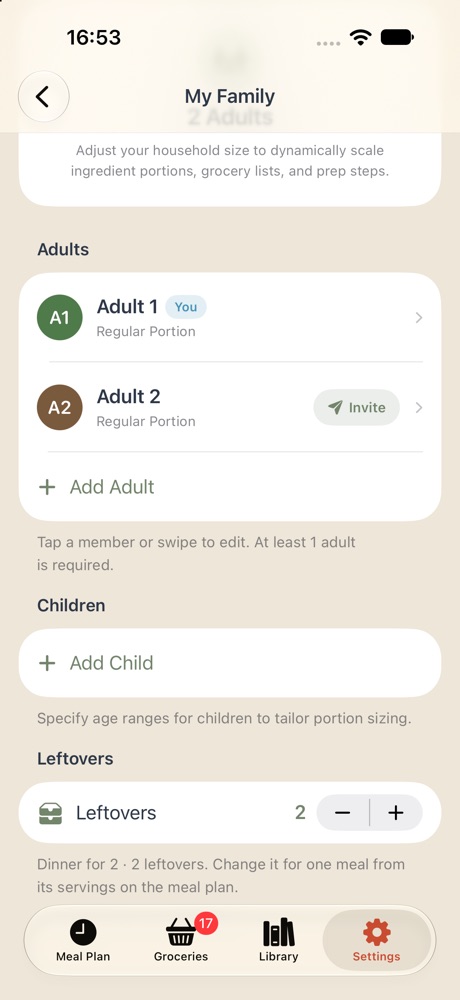
If you usually cook enough for the next day, set it once instead of changing every meal:
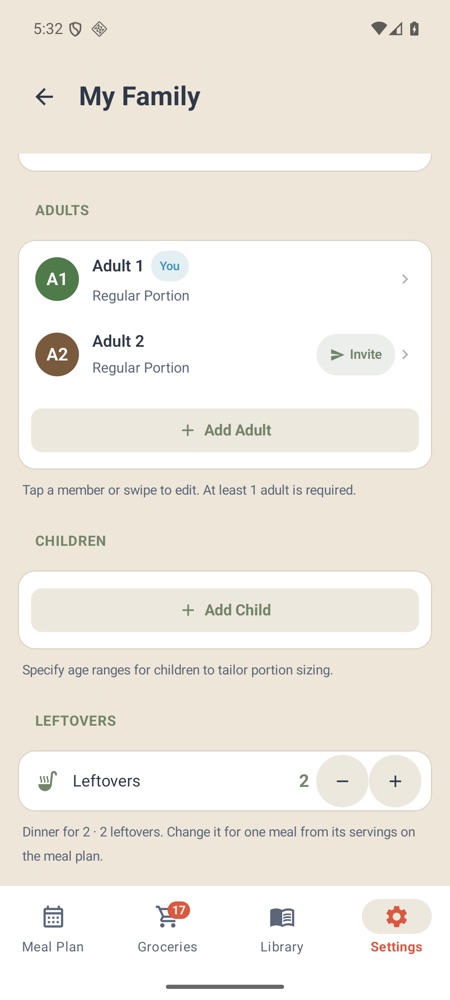
- Tap Settings, then My Family.
- Under Leftovers, tap + to choose how many extra servings to cook, from 1 to 12. Off cooks none.
The line underneath shows the result, such as Dinner for 4 · 2 leftovers. It saves straight away, for everyone in your household, and applies to the meals already on your plan too. Meals you’ve given their own setting keep it. Leftovers are free for everyone.
On iPhone
On Android
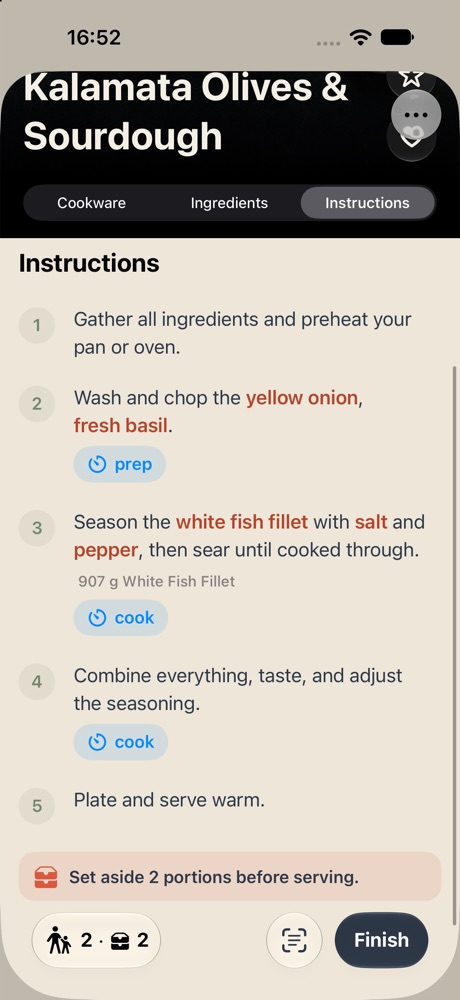
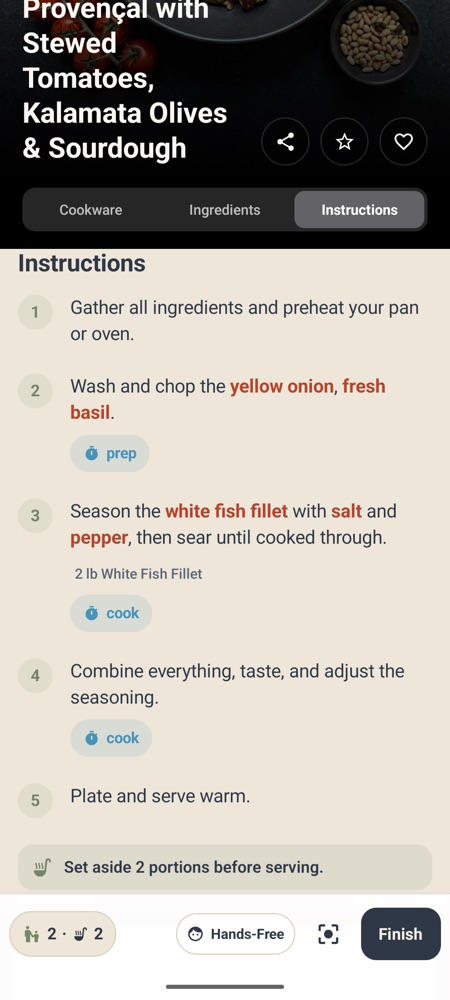
A meal with leftovers shows both numbers on its servings button, such as 2 · 2, with a small container icon before the leftovers.
If you keep setting meals to cook more than your family needs, the app suggests this setting once, with Always cooking extra?. Tap Set Leftovers to go straight to it.
Every adult in your household can change leftovers.
Change the leftovers for one meal
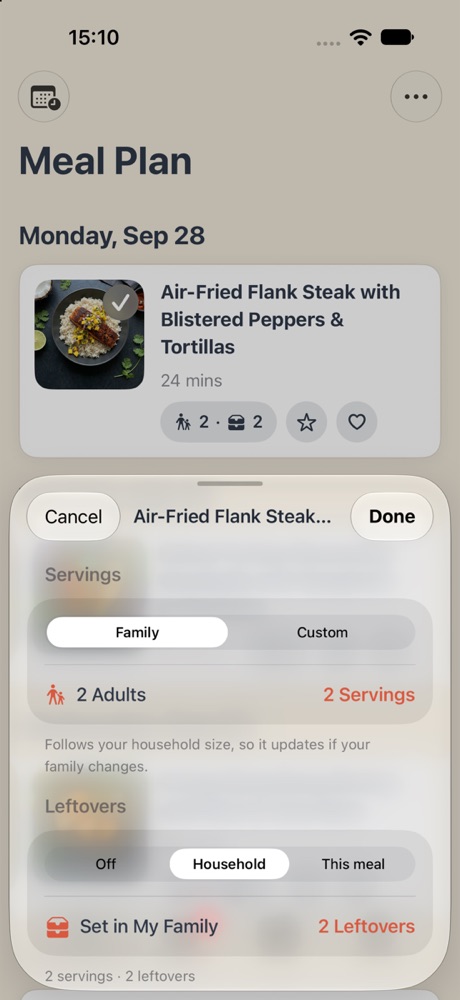
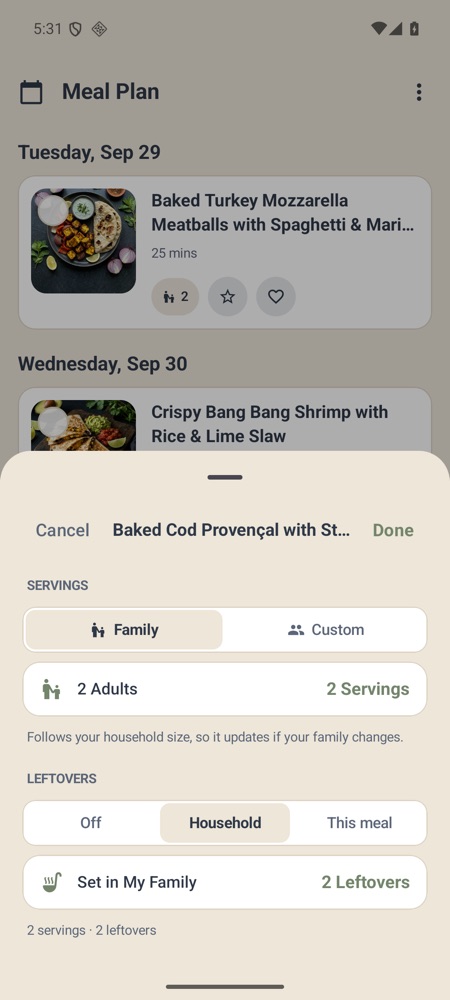
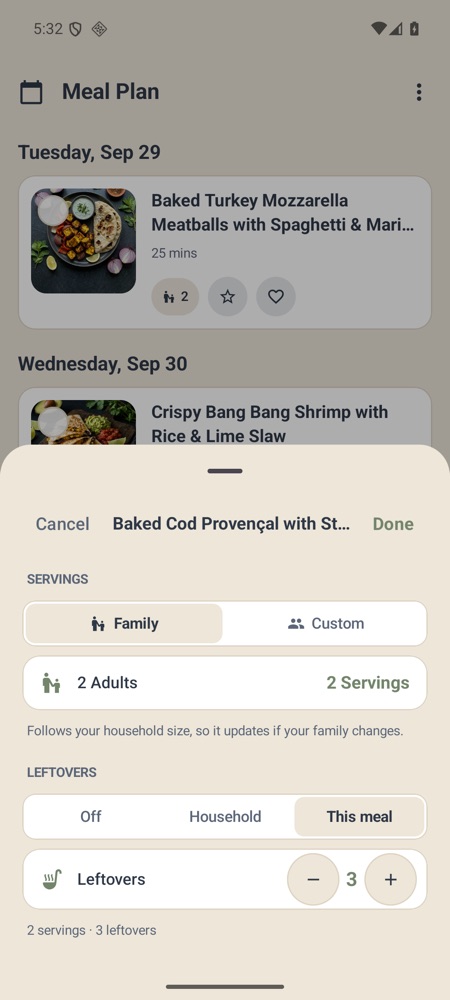
Tap the meal’s servings button on Meal Plan. Under the servings, the Leftovers section has:
- Off: no leftovers from this meal, for pizza night say.
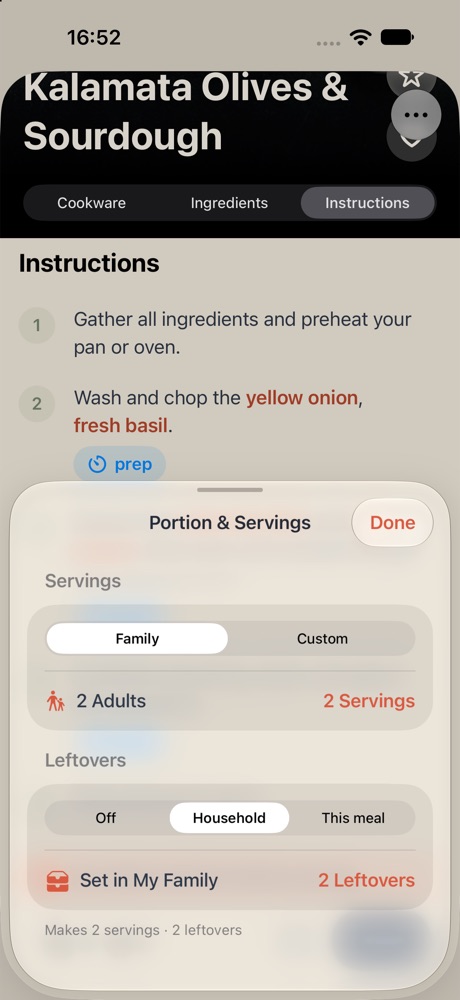
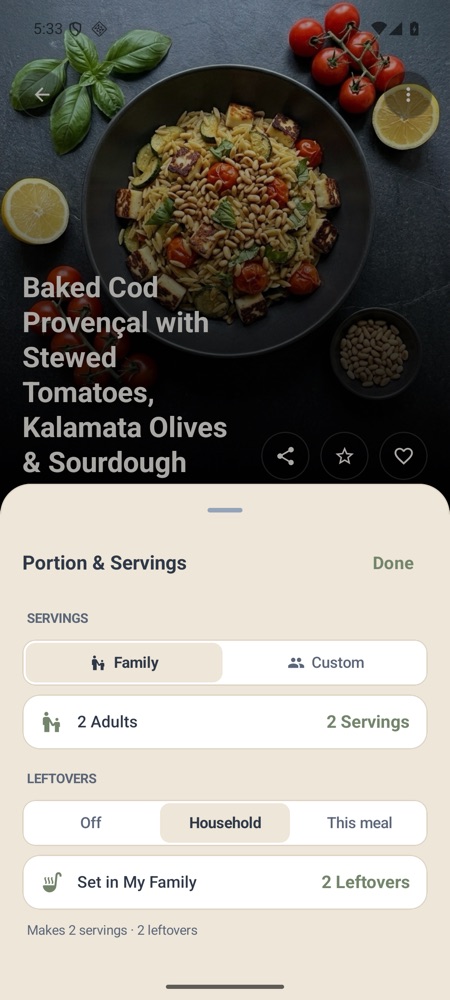
- Household: the number set in My Family, shown as Set in My Family with, say, 2 Leftovers. It only appears once you’ve set leftovers in My Family; change the number there.
- This meal: this meal’s own number, with − and +. It works whether or not your household cooks leftovers.
The line at the bottom adds it up, such as 2 servings · 2 leftovers. Leftovers come on top of Family or Custom servings alike.
On iPhone
On Android
On Android
On the recipe and while cooking
- The recipe’s amounts are for the servings and the leftovers together. The servings button on the recipe opens Portion & Servings, with the same choices, and says what the recipe makes, such as Makes 2 servings · 2 leftovers. On a meal from your plan, a change there changes the meal on your plan too.
- A recipe that isn’t on your plan starts with your household’s leftovers.
- The last step reminds you: Set aside 2 portions before serving.
On iPhone
On Android
On iPhone
On Android
Your shopping list
The shopping list buys for each meal’s servings plus its leftovers, so 2 servings and 2 leftovers buy as much as 4 servings. Change a meal’s leftovers and the list follows.
Write to us at hello@weeknightbiteapp.com. We read and answer every email. Tell us which phone you use and what you tapped, and a screenshot helps.
Tell us what you were trying to do and what happened. We read every message.