
Auto-Scheduling schedules each new meal plan for you: every dinner gets a day, on the nights you cook. Some people prefer a list of the week’s dinners and picking one each night, the way Mealime worked. Turn Auto-Scheduling off for that.
Turn Auto-Scheduling off
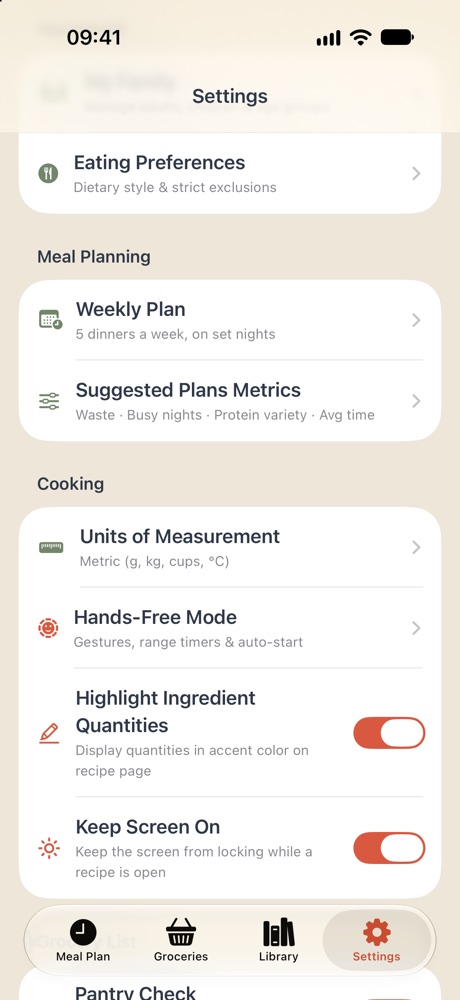
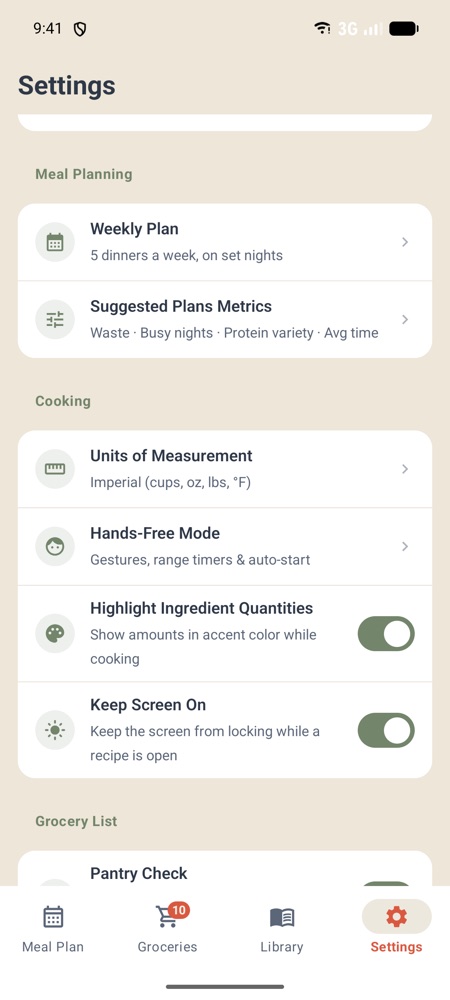
- Tap Settings.
- Under Meal Planning, tap Weekly Plan.
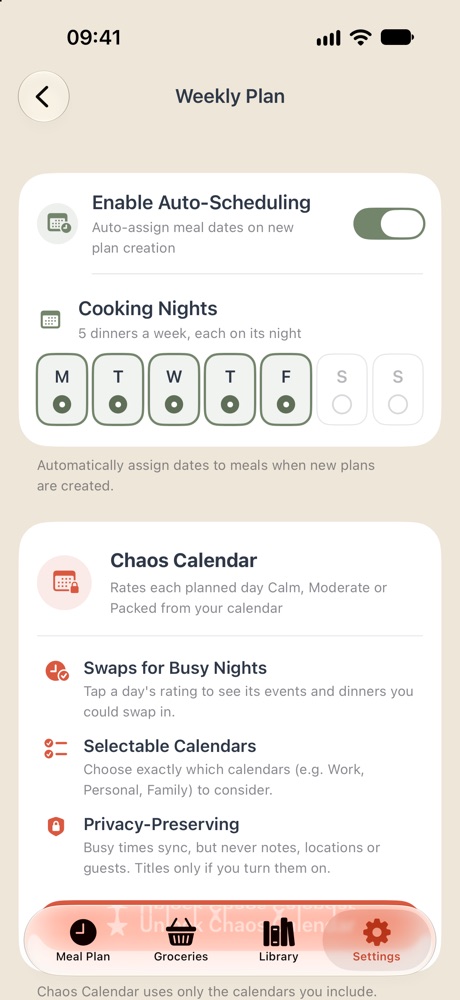
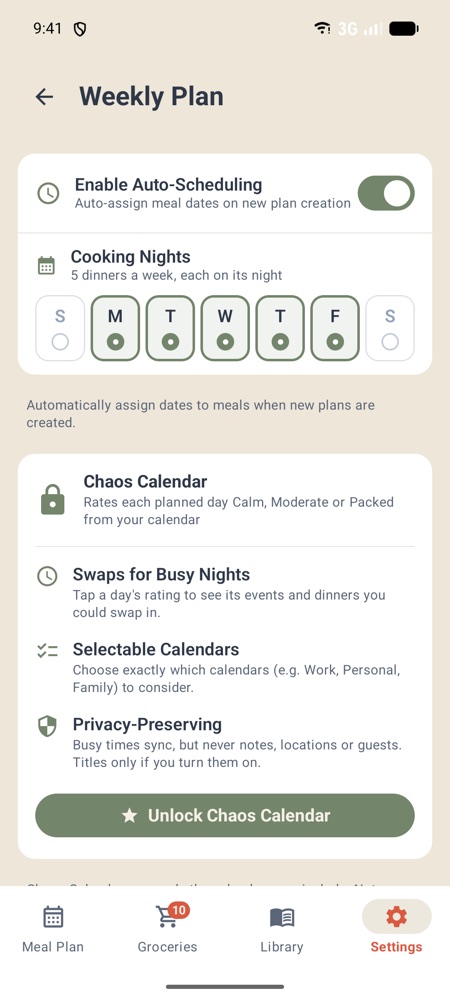
- Turn off Enable Auto-Scheduling.
On iPhone
On Android
On iPhone
On Android
From then on, a new plan’s dinners have no dates. They show on the Meal Plan tab without a day, ready to cook in whatever order suits the night. Want days after all? Tap the calendar at the top left of Meal Plan and drag each dinner to its day. Your current plan keeps its days until you change them (below).
You chose this once already when you first set up WeeknightBite; the setting changes it any time.
Choose the nights dinners are scheduled on
Under Enable Auto-Scheduling, Cooking Nights shows the seven days of the week. Tap a day to turn it off, and new plans skip it. With Monday to Friday on, a plan made on a Wednesday puts its dinners on Wednesday, Thursday, Friday and Monday.
To move a plan’s dinners to other days, tap the calendar at the top left of Meal Plan and drag them, or drag a dinner to another day on Meal Plan itself.
No Cooking Nights in your settings? Update the app. Until then, let it make the plan, then move each dinner to its night (below).
Give a dinner a day, or take it away
- On Meal Plan, tap ⋯⋮ at the top right, then Edit Plan.
- Tap the date next to a dinner (it reads Schedule if it has none).
- Choose Today, Tomorrow or Pick Custom Date…, or Clear Date to take its day away.
- Save the plan with the checkmark at the top right.
On iPhone
On Android
Leave it on, but change how it plans
The same screen sets how many dinners a week you plan:
- With Auto-Scheduling on, pick your Cooking Nights: five nights are five dinners. With every night picked, Dinners Per Week sets the number.
- With Auto-Scheduling off, Dinners Per Week sets the number.
Write to us at hello@weeknightbiteapp.com. We read and answer every email. Tell us which phone you use and what you tapped, and a screenshot helps.
Tell us what you were trying to do and what happened. We read every message.